

Entra ID SSO
It is possible to enable an integration between your Entra ID tenant (formerly known as Azure AD) and Better Airport. This allows users to login to Better Airport using their normal Microsoft accounts in Entra ID. Furthermore it is possible to setup mapping from groups in Entra ID to roles in Better Airport so users are automatically given the right permissions in Better Airport by just assigning users to those groups.
Setting up SSO in Entra ID is a straightforward process. The connections and setup steps are outlined below. For further coordination and review of the role mapping, we can arrange a dedicated meeting between the airport's IT team responsible for user accounts and our AD specialist, based in Copenhagen. Generally we advise following the steps below before such meeting.
OpenID Connect
In order for the integration to be established some information needs to be exchanged between us.
We will provide you with the following that needs to be entered on your end:
- Redirect URI
- Application certificate
We need the following information to setup the integration on our end:
- OpenID Connect metadata document URL
- Client id
In the following section, we explain how to get the necessary information.
App Registration
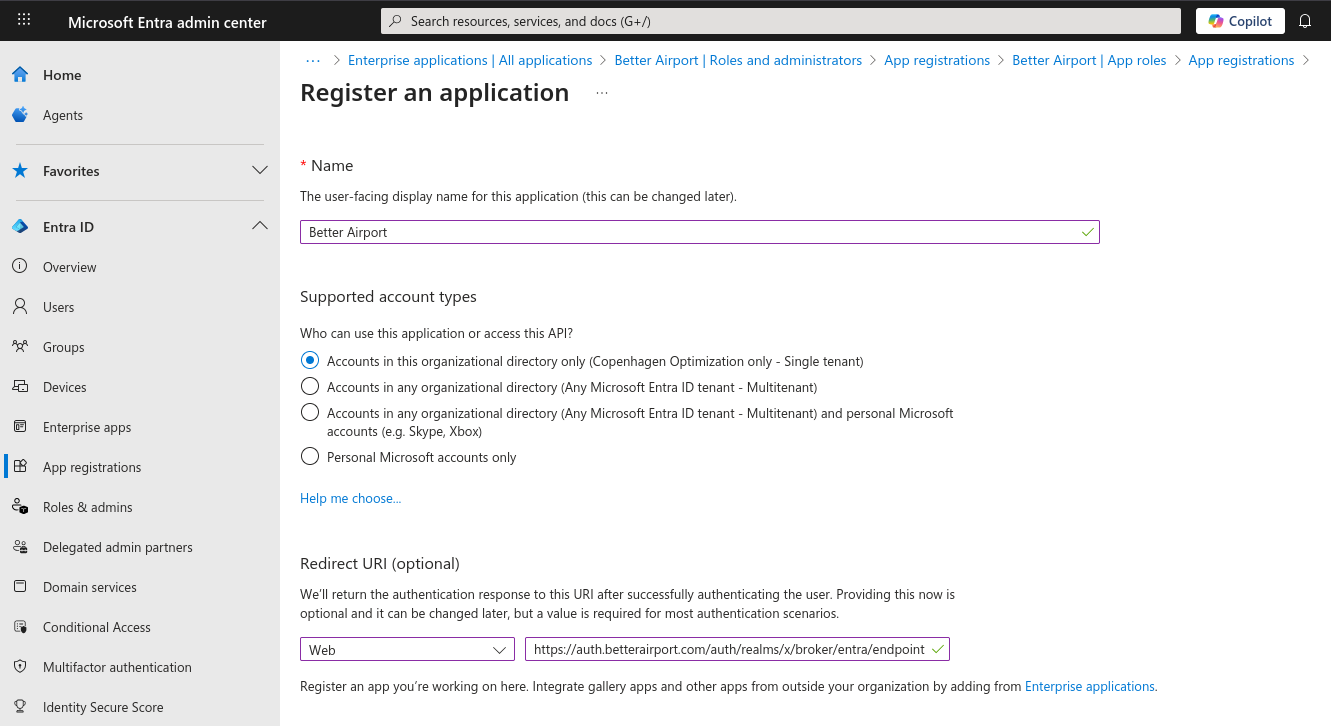
Better Airport can be added to Entra ID by adding an Enterprise application under Entra ID -> App registrations -> New registration. Then enter Better Airport as the name of the app and add the Web Redirect URI to https://auth.betterairport.com/auth/realms/<your-realm-name>/broker/entra/endpoint:
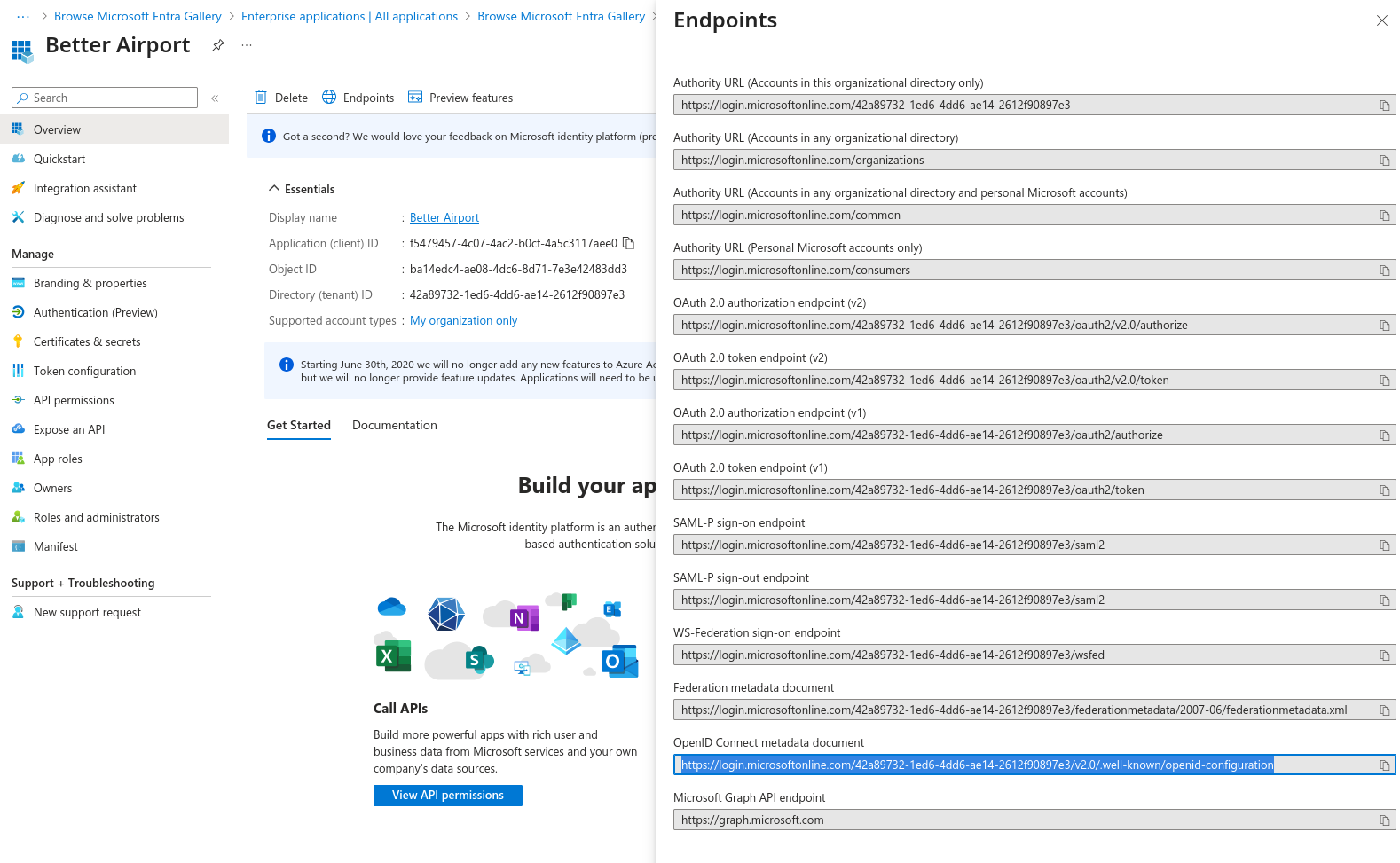
Once the app registration is created, you can now find the Application (client) ID on the Overview page. The OpenID Connect Metadata document URL can be located by clicking on Endpoints:
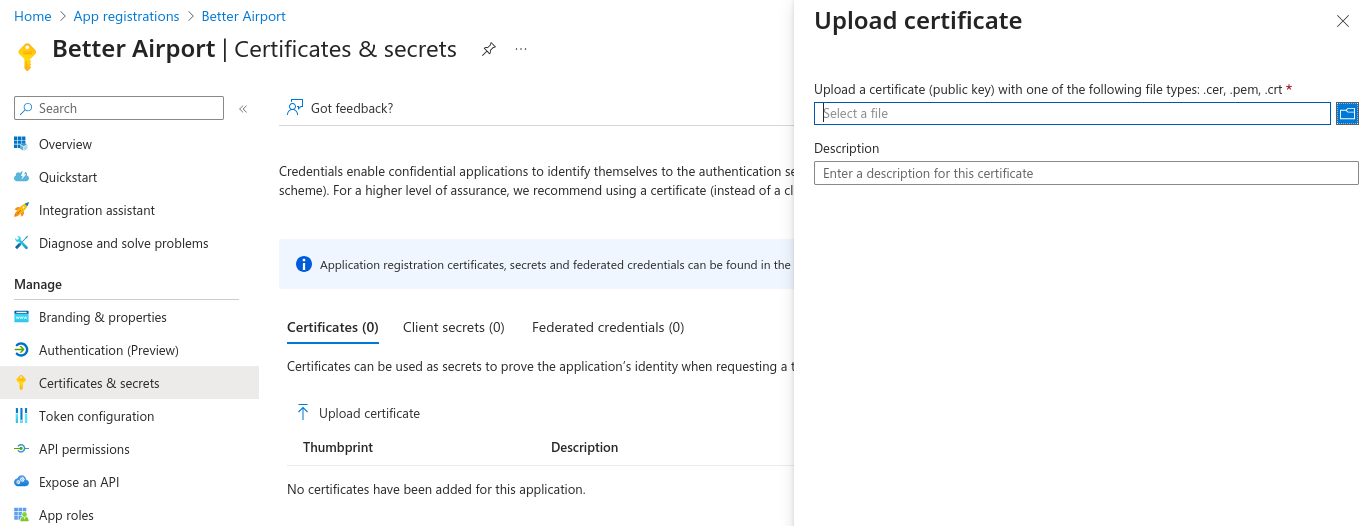
The last step is to add the certificate we will provide you under Certificates & secrets in the menu:
Once the certificate has been added, send us the metadata document URL and client ID, so we can complete the registration in Better Airport.
App Roles
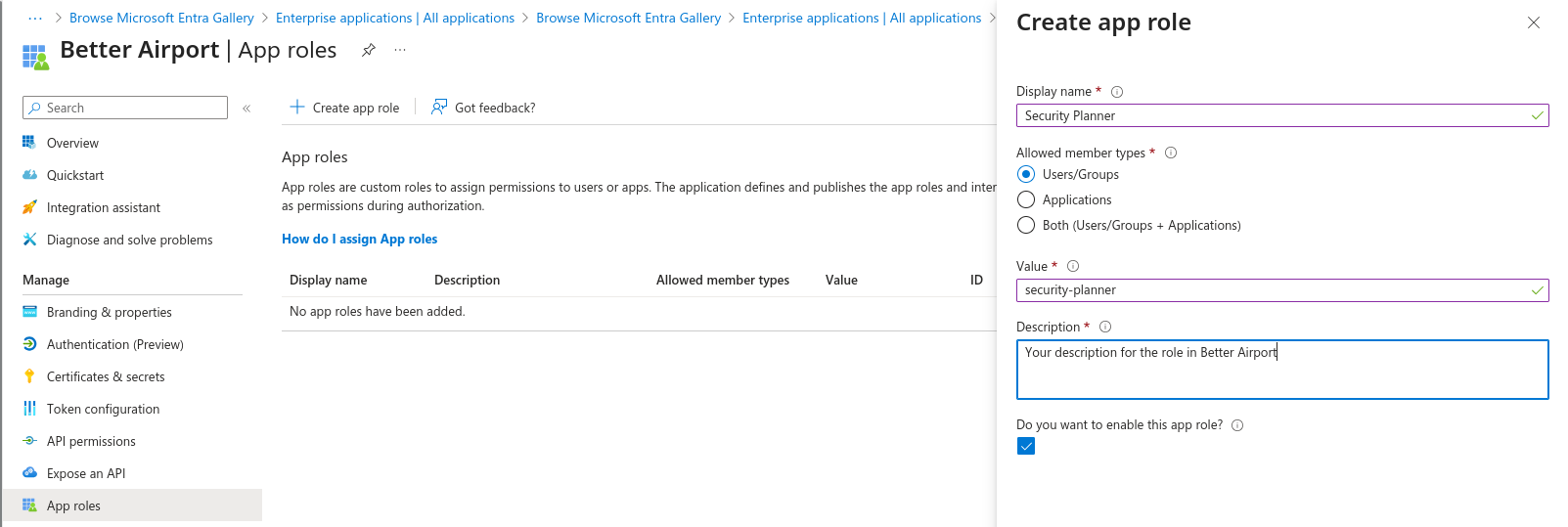
In the menu, App roles allows you to define the roles you want to use in Better Airport. The usual workflow here is that you create an App role with a Display name and Description of your chosing. Then the Value of this role is shared with Copenhagen Optimization to allow us to use that to map from your App role to a Better Airport role that we will create for you with the necessary permissions:
Once the app role is created, you can assign users either directly, or via groups (recommended, but this may require a Premium Entra ID license). During user login, the user's app role values are then shared with Better Airport and used to allow the user the intended access.
App roles are usually based on organizational roles and the mapping to Better Airport thus constitutes Role-Based Access Control. The necessary access that each role has will be determined in cooperation with Copenhagen Optiomization. The different levels of access grant different capabilities such as full control, restricted access to settings, and visual access only. Third-party stakeholders such as airline and handling operators can be granted access to the same views as the airport users, and they are able to see plan updates live, with or without the possibility to edit them.
External Users
We recommend allowing access to external users, e.g. airline and handling operators, by creating them as guest users in your Entra ID tenant and then assigning them the relevant groups to use the app roles defined for the type of access you wish them to have, however, if these external users can't be allowed access in this way, it is possible for them to either be setup as a separate SSO configuration in their own Entra ID, or be configured directly in Better Airport as direct user accounts without using SSO. It is possible to setup Multi-Factor Authentication for non-SSO users in Better Airport.